Only upload photos of yourself or of people who agreed to take part.
A portrait becomes your gala arrival.
An AI red carpet video turns a portrait into an imagined gala entrance. The template adds elegant eveningwear, warm event lighting and a red carpet lined with photographers. Your subject walks forward, pauses for the flashes, smiles and waves before a final pose. It is a playful cinematic transformation for fashion posts, profile videos and party edits.
Choose the supported duration for your template and check the quote before generating. Each generation costs 200 credits. The preset supplies the scene, movement and original sound.
How it works
Go from a still image to an AI video in four simple steps.
Use a sharp portrait with a visible face and enough space around the upper body.
Choose the supported duration for your template and check the quote before generating. Each generation costs 200 credits. The preset supplies the scene, movement and original sound.
Review the credit quote next to Generate. The preset directs the scene, motion, camera and original audio; you can follow progress in the workbench.
Review the subject and motion, then download the finished MP4. Regenerating creates another take and uses credits again.
Explore the visual details and workflow behind the AI Red Carpet Video template.
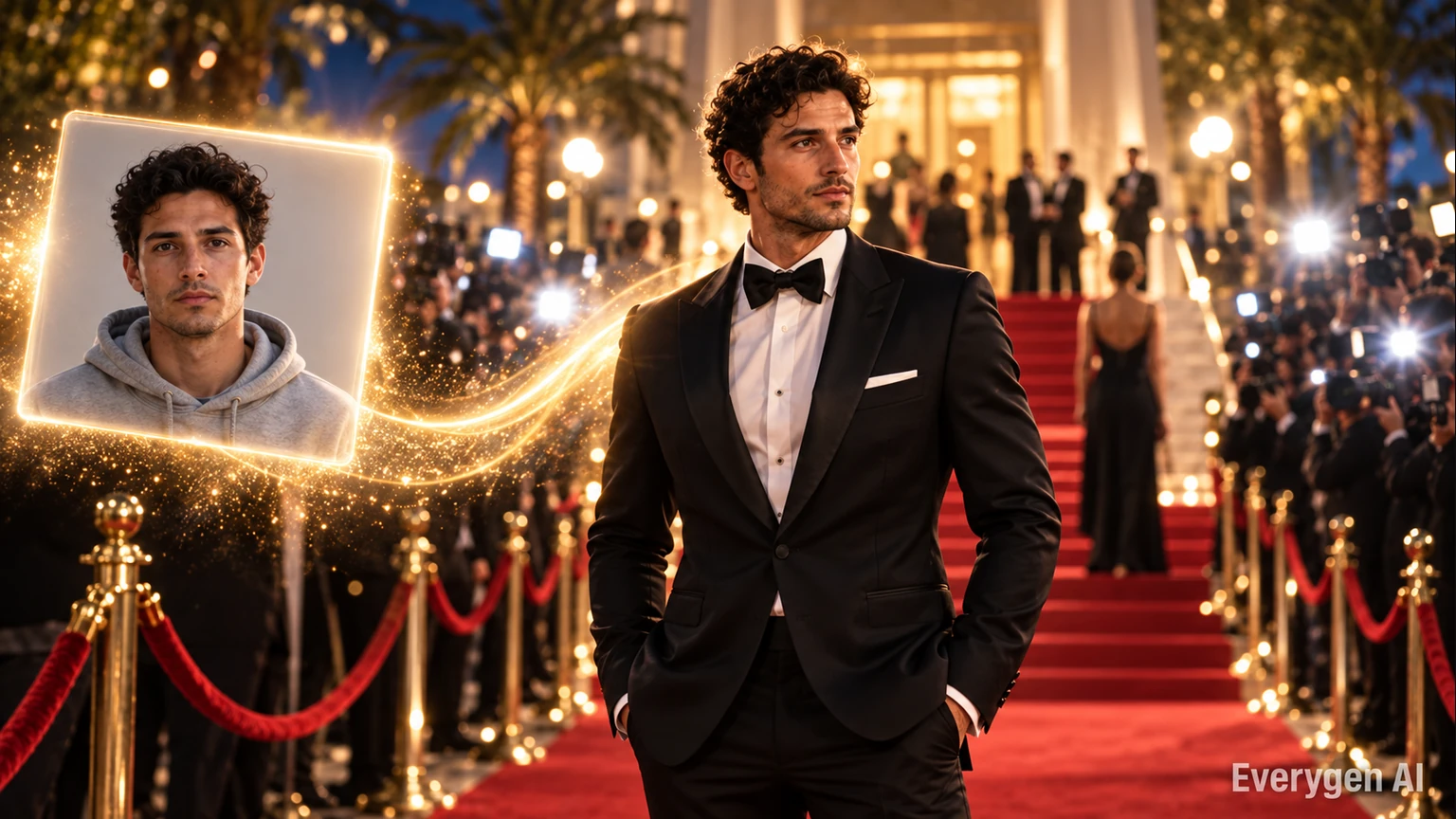
The uploaded portrait anchors the opening frame. The preset builds an original gala scene around your subject, with eveningwear and warm lighting, while aiming to preserve recognizable facial details.
Use a portrait with balanced lighting and a face that is easy to read. A simple background gives the template more freedom to build the gala environment, while visible shoulders and natural posture help connect the subject to the new outfit and scene.
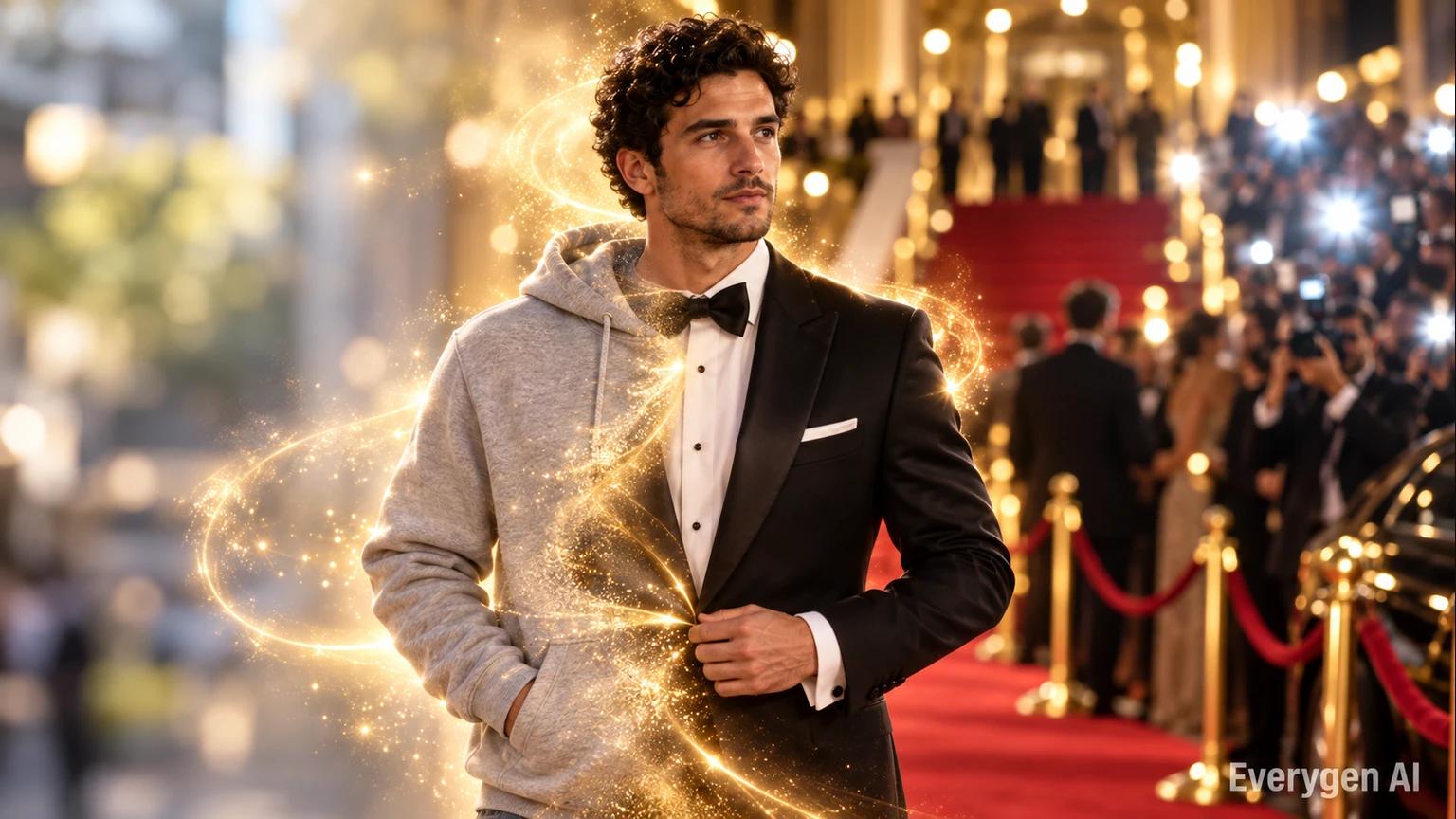
The transformation is directed as a moving arrival rather than a still-photo filter. Eveningwear, fabric movement, the surrounding crowd and the camera path work together to establish a complete moment. Your image remains the visual starting point, so the expression and angle of the portrait influence the feel of the final entrance.
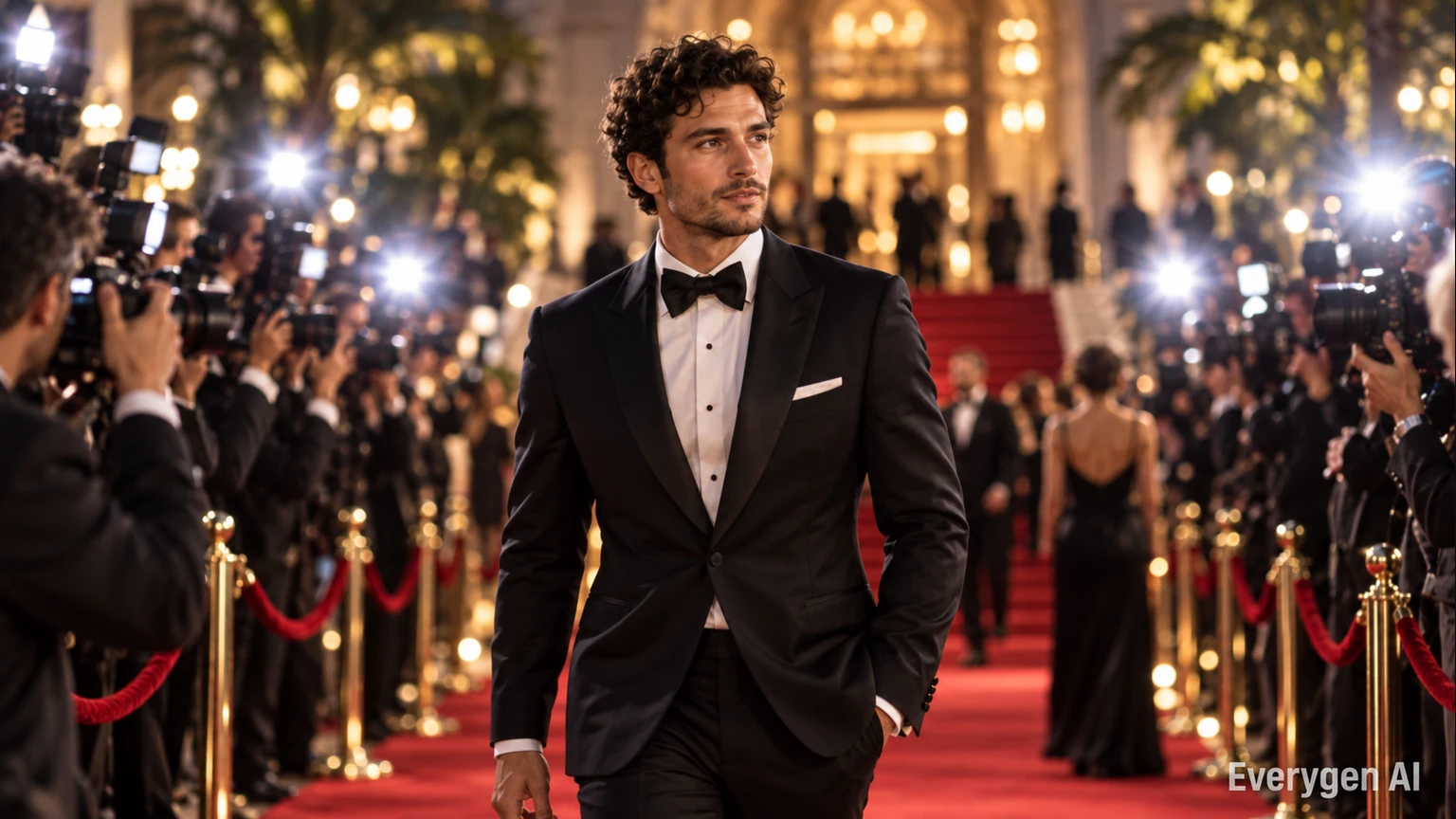
Camera shutters, small flashes and a smooth tracking shot create the feel of an event arrival. The movement is directed as one coherent sequence rather than an unrelated collection of poses.
Small flashes work best when the person remains clearly visible between them. The camera direction favors a smooth, readable approach, with warm background lights providing depth around the subject rather than overpowering the face.
Original shutter sounds and quiet event ambience support the visual rhythm. This gives a short clip a sense of place even when it is used as the opening of a social post. Compare the timing of the flashes with the subject’s pause, and keep the take whose lighting and movement fit the mood of your edit.
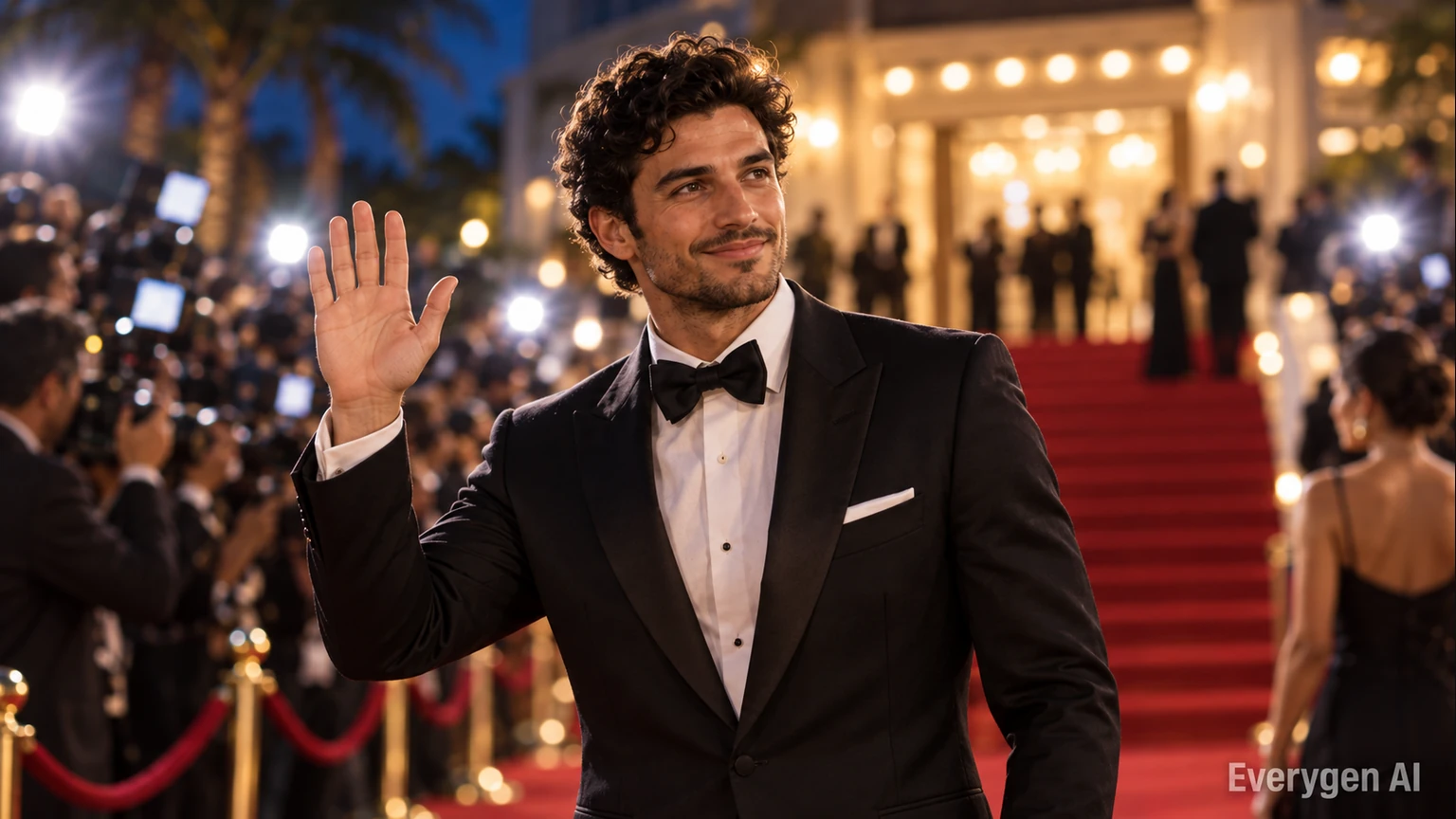
The subject walks, pauses and acknowledges the cameras with restrained gestures. A clear portrait gives the template better facial guidance; review hands, fabric and face continuity before sharing a take.
The entrance is built around gestures that read well in a short video: a walk, a small turn, a smile and a wave. A relaxed reference pose makes it easier for the generated movement to feel connected to the person in the photo.
Treat the final pose as a useful end point for a cut, title card or transition in your own editor. The template itself keeps the scene free of text overlays, leaving space for the creative treatment you want to add after downloading. A clear face and visible upper body provide stronger guidance than a heavily cropped or stylized portrait.
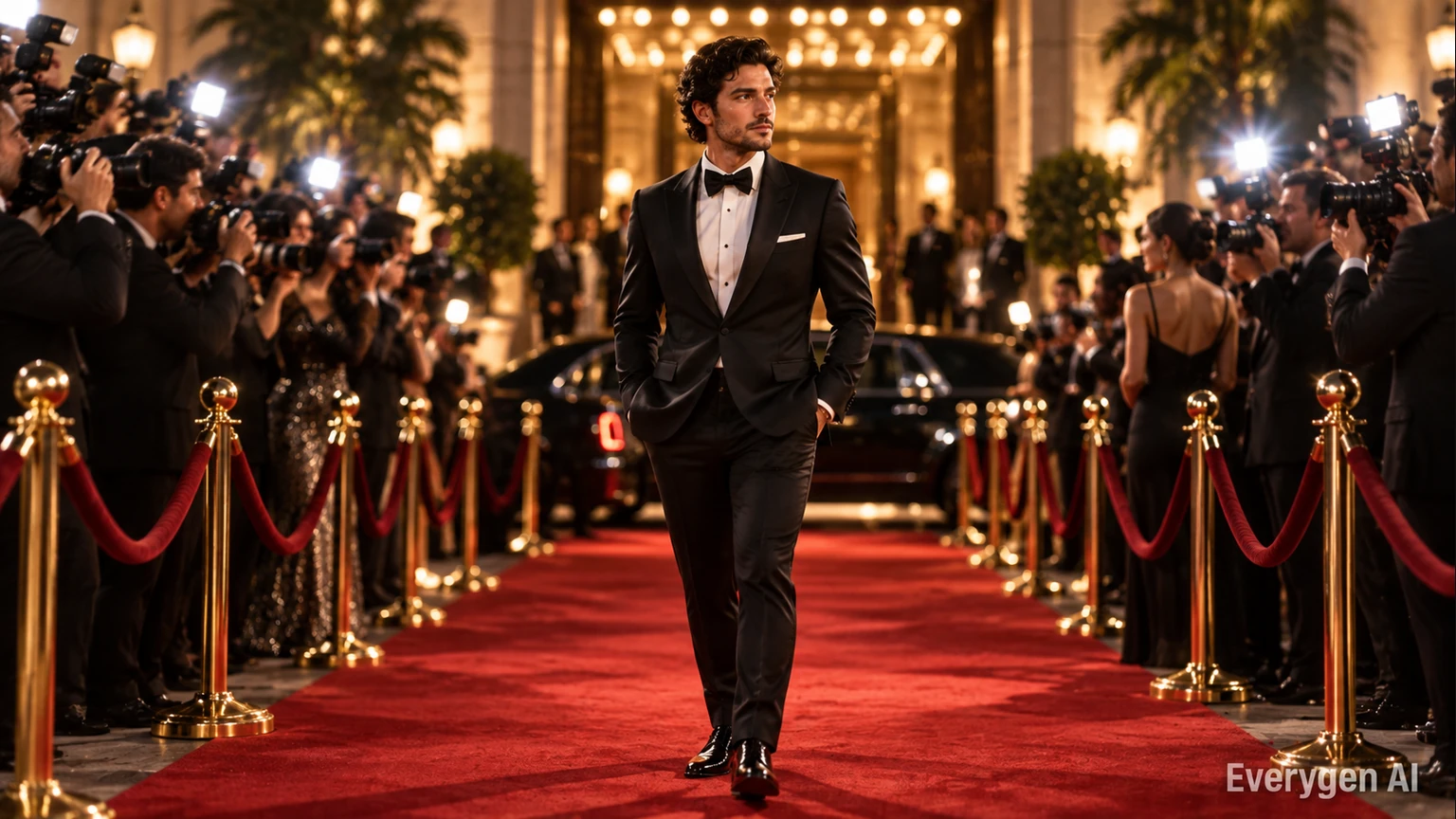
Generate a short MP4 with original instrumental music and event ambience. The video follows your photo’s shape, so a vertical portrait is a useful starting point for Reels and Shorts.
Frame the input for the platform you plan to use. A vertical portrait can concentrate attention on the subject, while a wider photo leaves more room for the carpet and photographers. The image-to-video preset follows the source photo’s shape instead of adding a separate ratio control.
The completed clip can be shared as a fictional fashion transformation, placed beside the original portrait or combined with other footage in a party or profile edit. Keep the music and event atmosphere for a complete moment, or adjust the audio in your editing workflow to suit the surrounding clips.
Find a setting for the effect in your next post, story or creative project.
Make a playful gala reveal for a fashion-themed Reel or Short.
Open an introduction with an imagined red carpet entrance.
Give a consenting friend a cinematic entrance in a celebration edit.
Explore eveningwear styling and lighting for a creative moodboard.
Turn your own portrait into a clearly labeled fictional gala scene.
Test a glamorous visual direction for an original event teaser.
Start with a clear source image and give each take one simple purpose.
Try this direction with your own image and the AI Red Carpet Video preset. Compare the source and generated motion in a short post or edit.
Try this direction with your own image and the AI Red Carpet Video preset. Compare the source and generated motion in a short post or edit.
Try this direction with your own image and the AI Red Carpet Video preset. Compare the source and generated motion in a short post or edit.
Try this direction with your own image and the AI Red Carpet Video preset. Compare the source and generated motion in a short post or edit.
Try this direction with your own image and the AI Red Carpet Video preset. Compare the source and generated motion in a short post or edit.
Try this direction with your own image and the AI Red Carpet Video preset. Compare the source and generated motion in a short post or edit.
A readable subject and a clean image give the template better visual guidance.
Try another trending effect with the same photos.
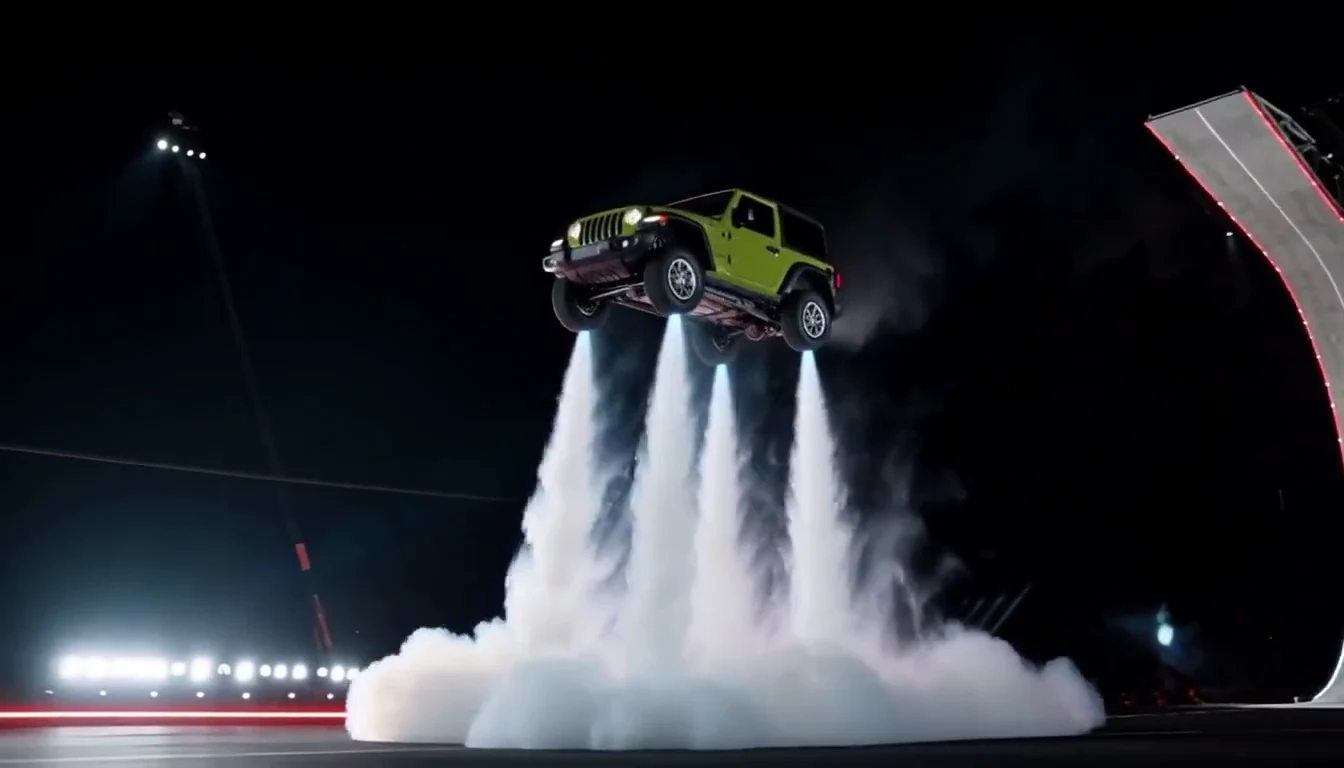
Turn your car photo into a Tesla Roadster-inspired ramp launch, kickflip or thruster landing. Explore nine flying car scenes, including traffic escape and tunnel walls.
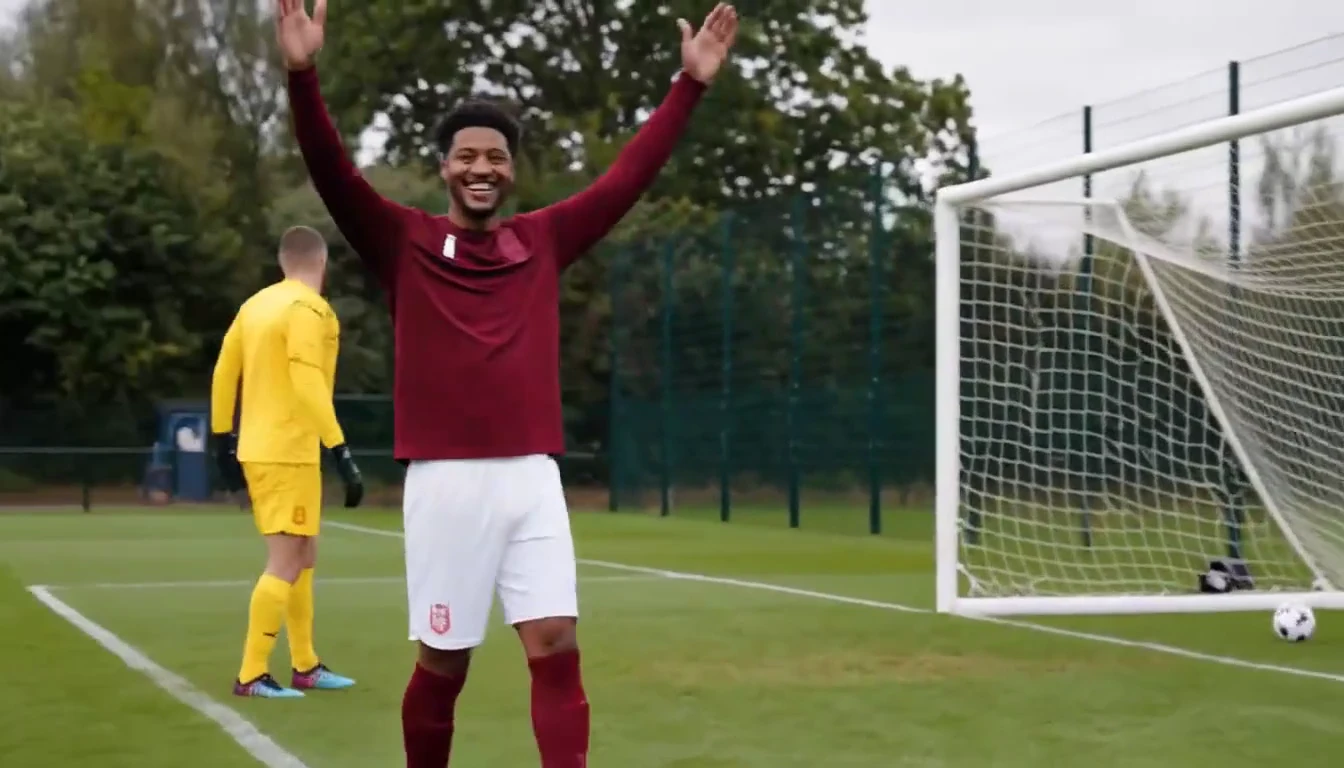
Put a new hero into a chip, dribble and empty-goal finish.
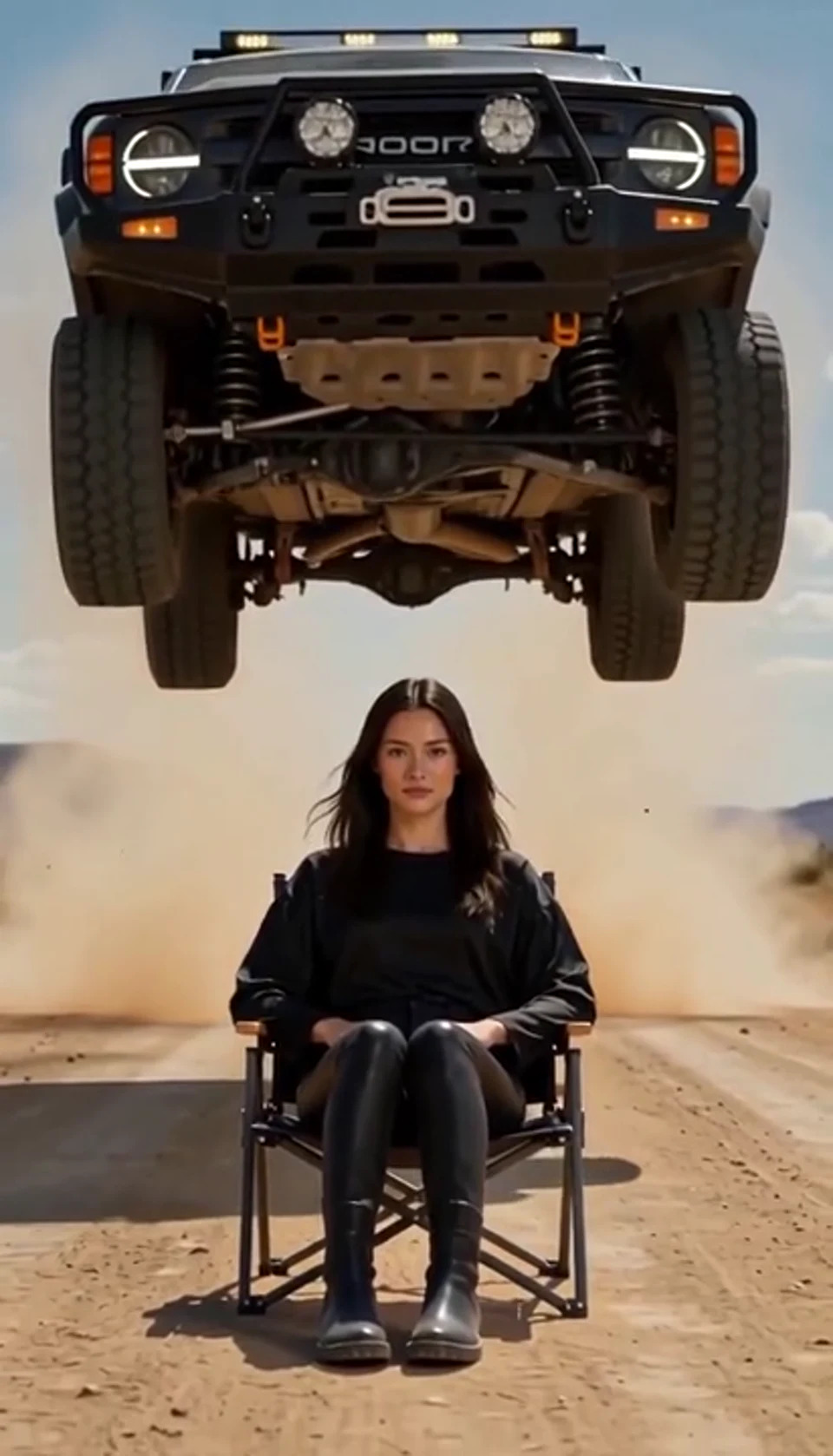
A calm portrait becomes a dramatic desert stunt.
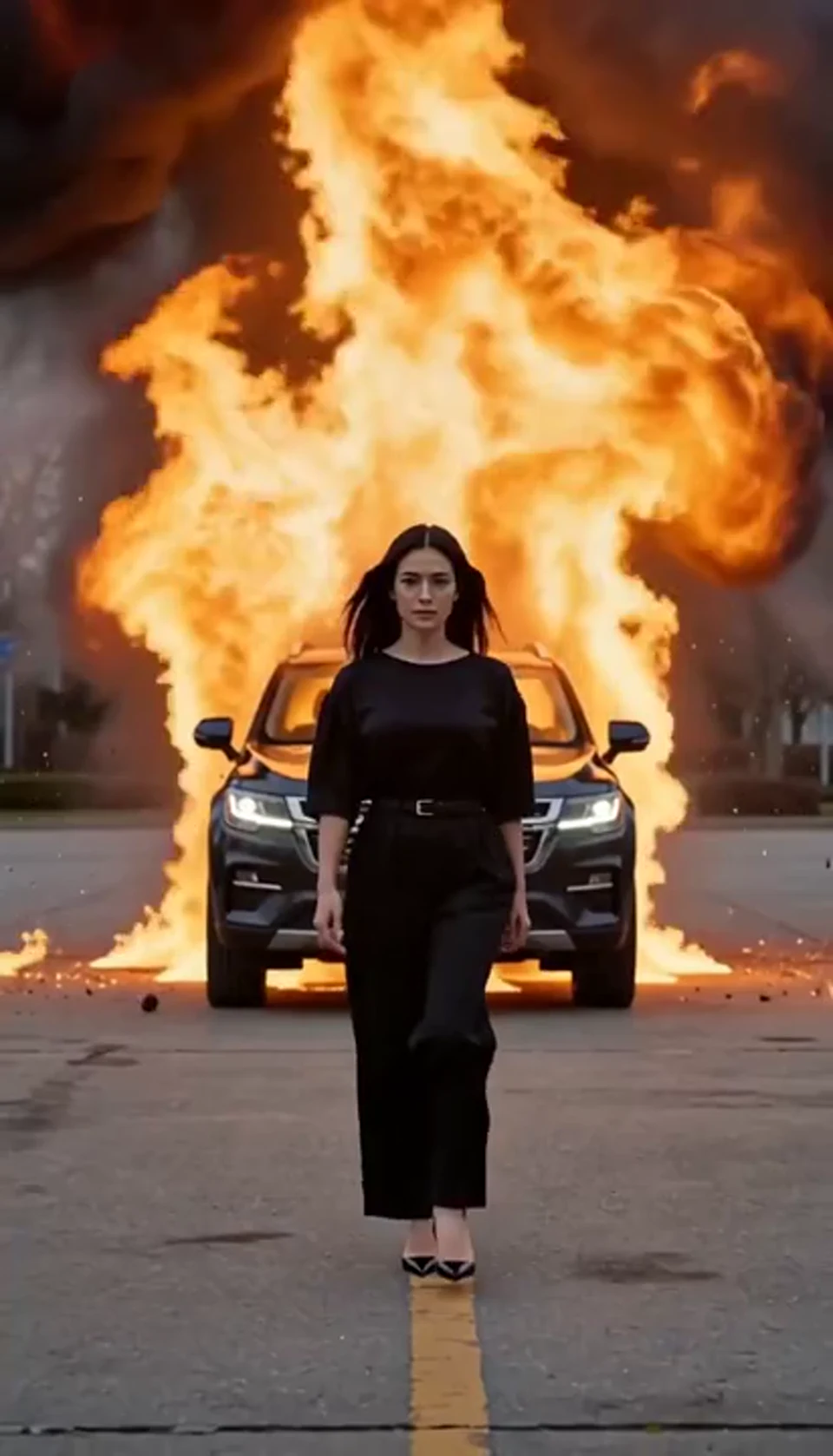
Walk toward the camera as the SUV erupts behind you.
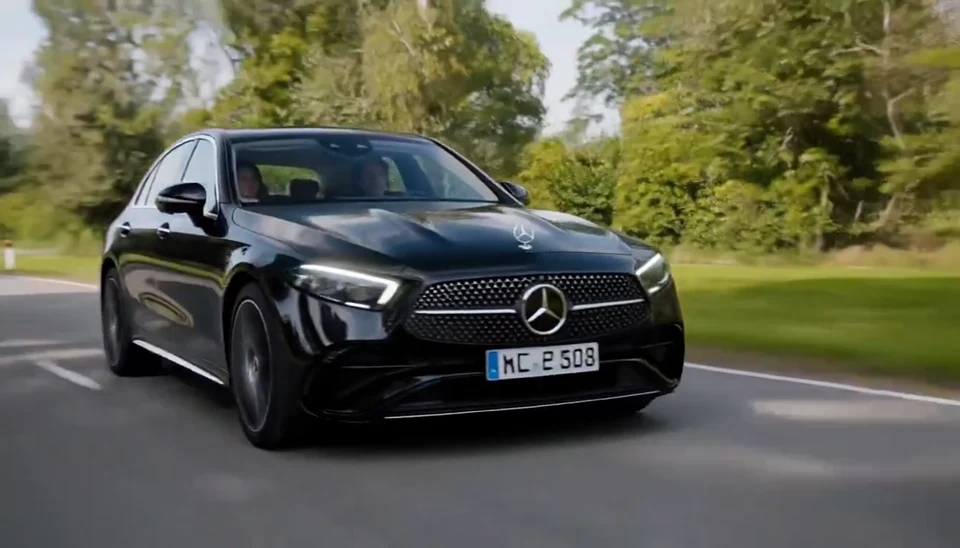
Your car photo becomes a cinematic driving shot.
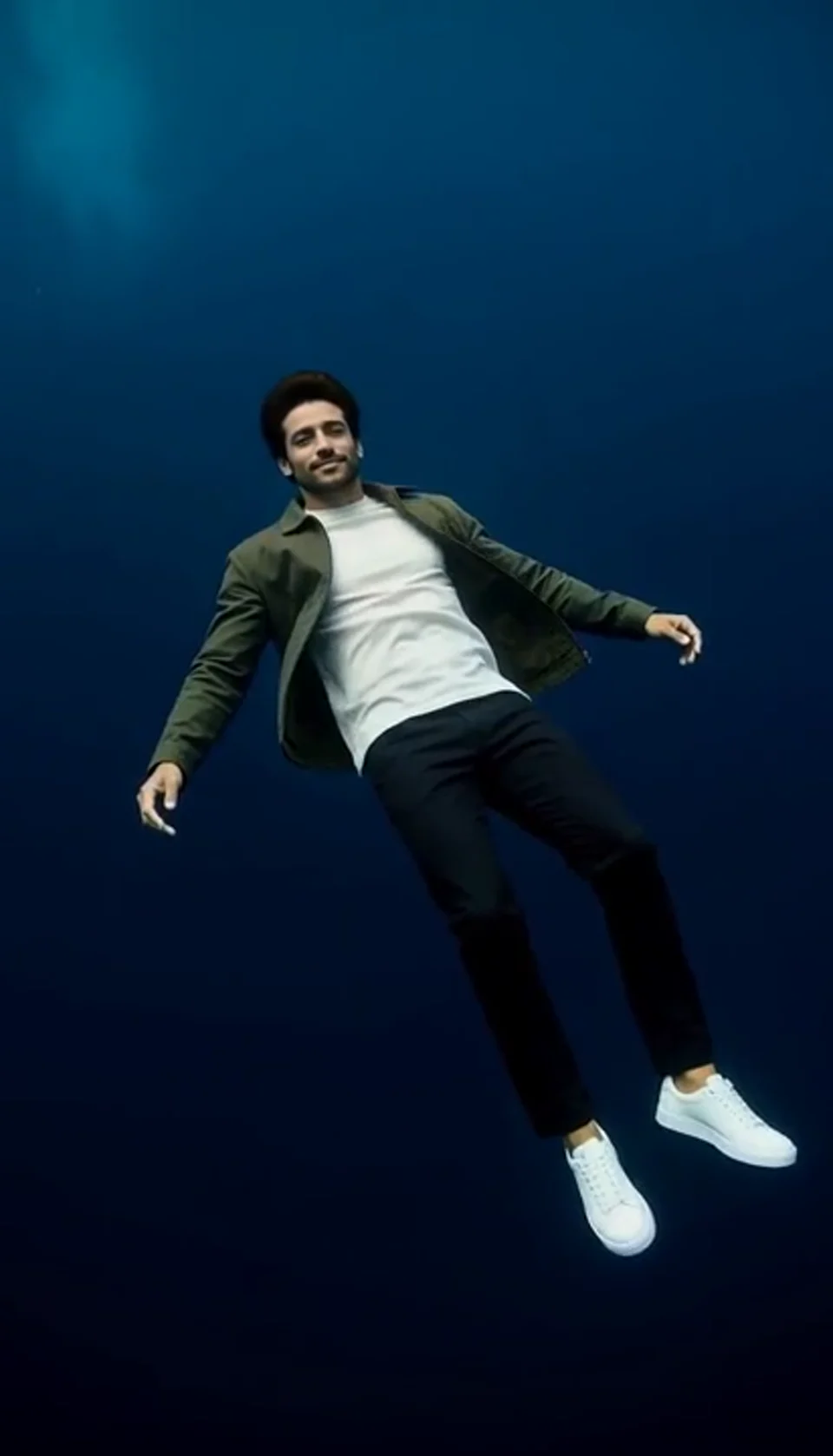
Turn one portrait into a dreamlike underwater scene. Drift through dark blue water with gently moving clothing, soft light and one calm camera move.
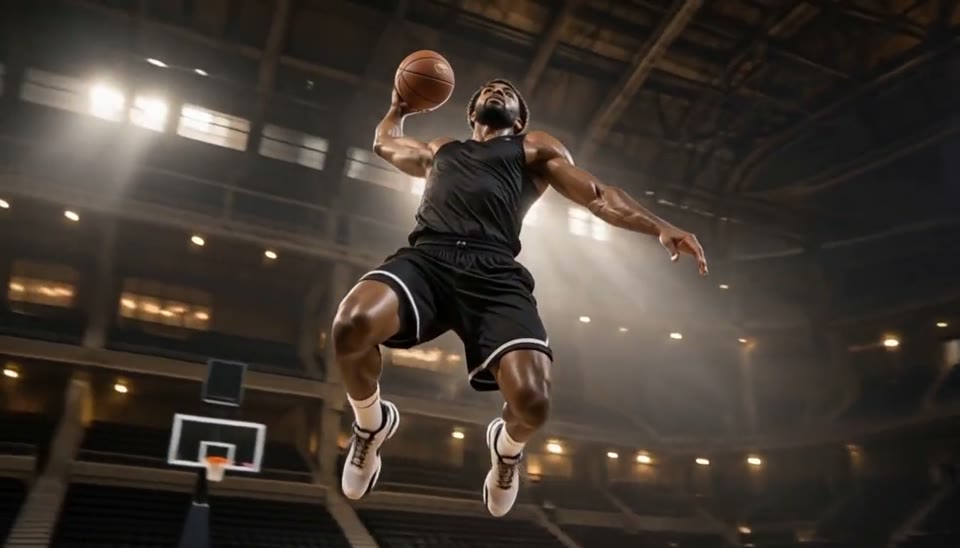
Freeze an action pose while the camera orbits around it.
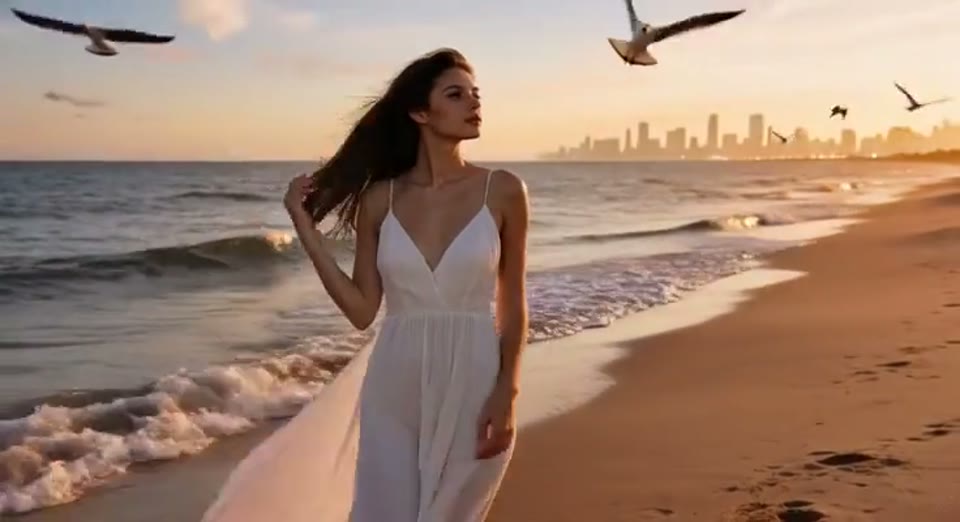
Create a day to night effect video from one photo on Cut AI. Animate golden hour, sunset and night lights while keeping the scene and framing consistent.
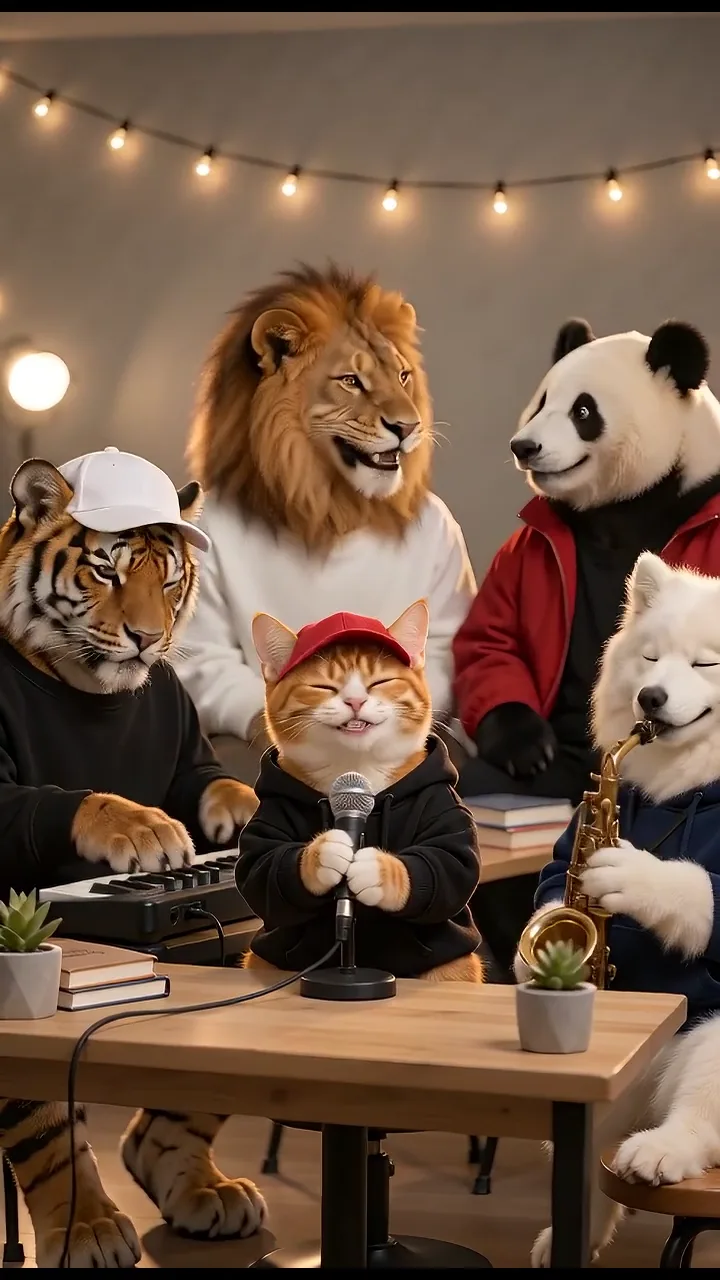
Turn your photos into a 15-second band performance. Choose a style, add a short chorus and create your video with music.
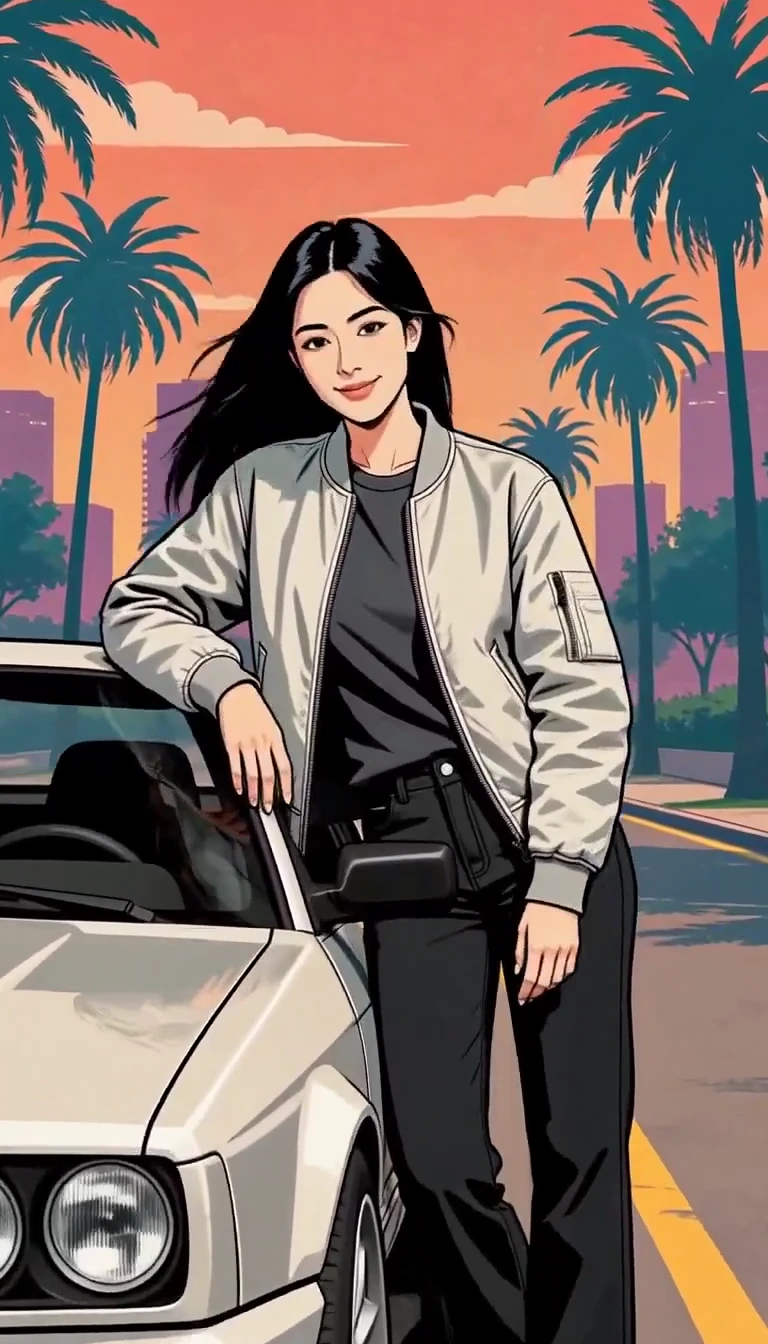
Turn one photo into an illustrated city character reveal.
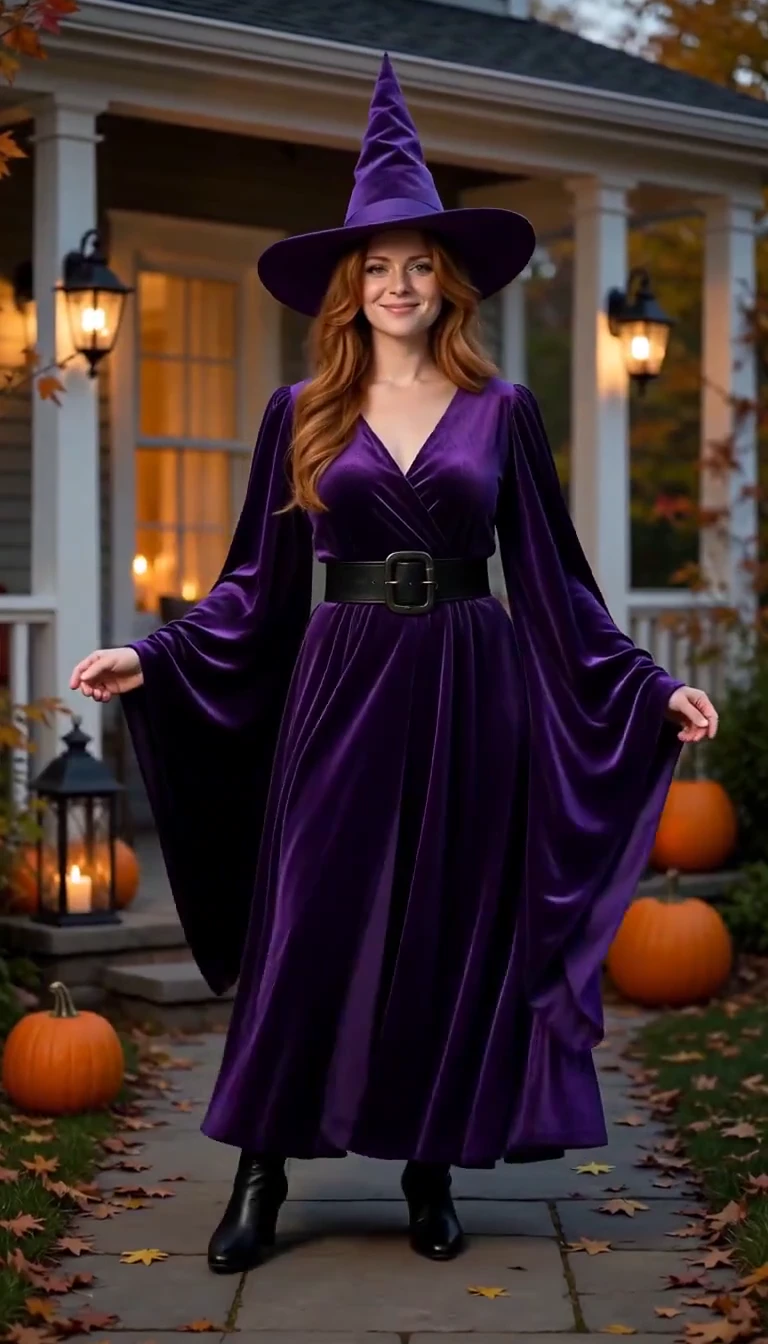
Reveal a witch costume with a turn, violet smoke and a final pose.
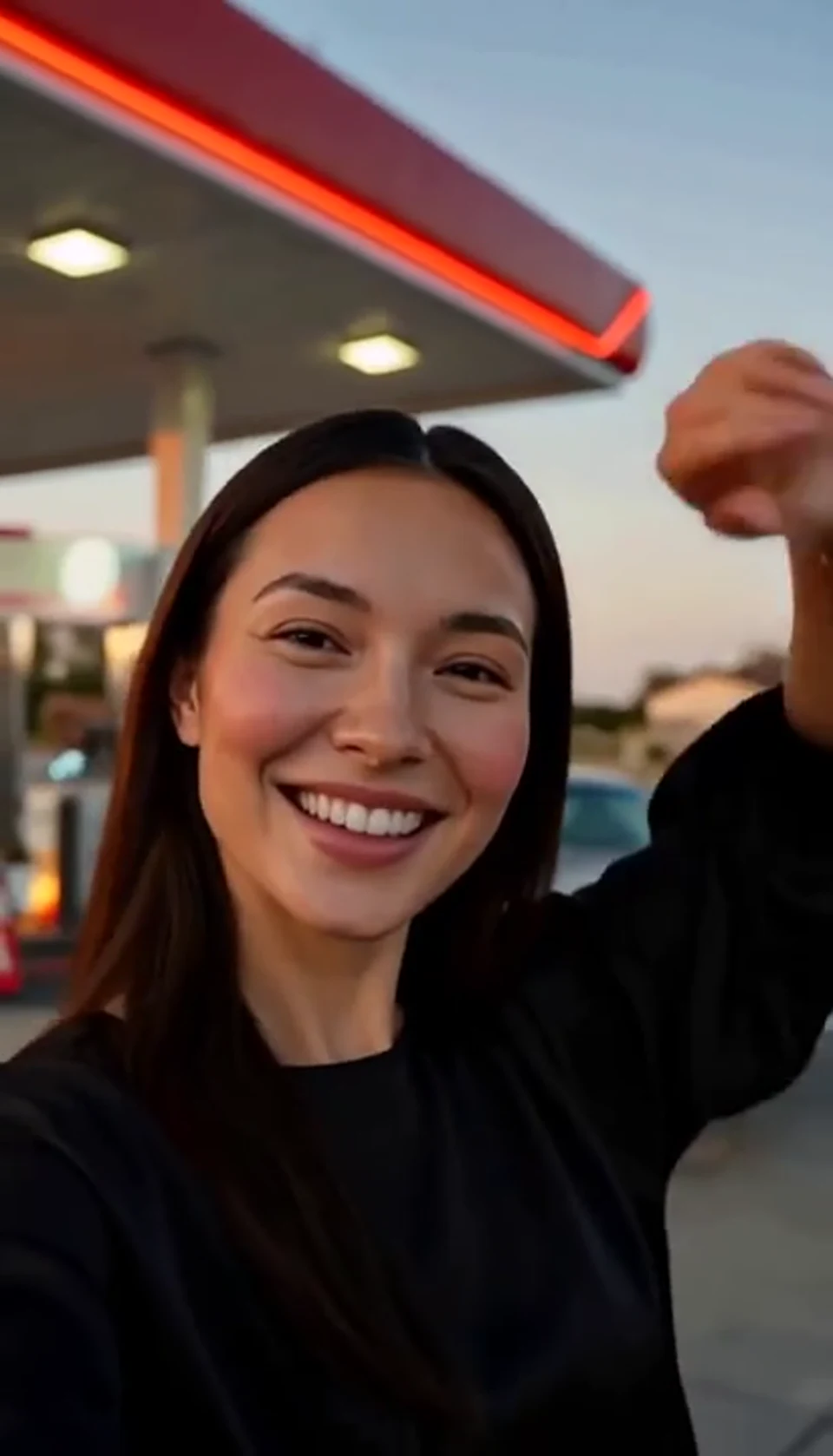
A sunset dance, a selfie and a cinematic car exit.
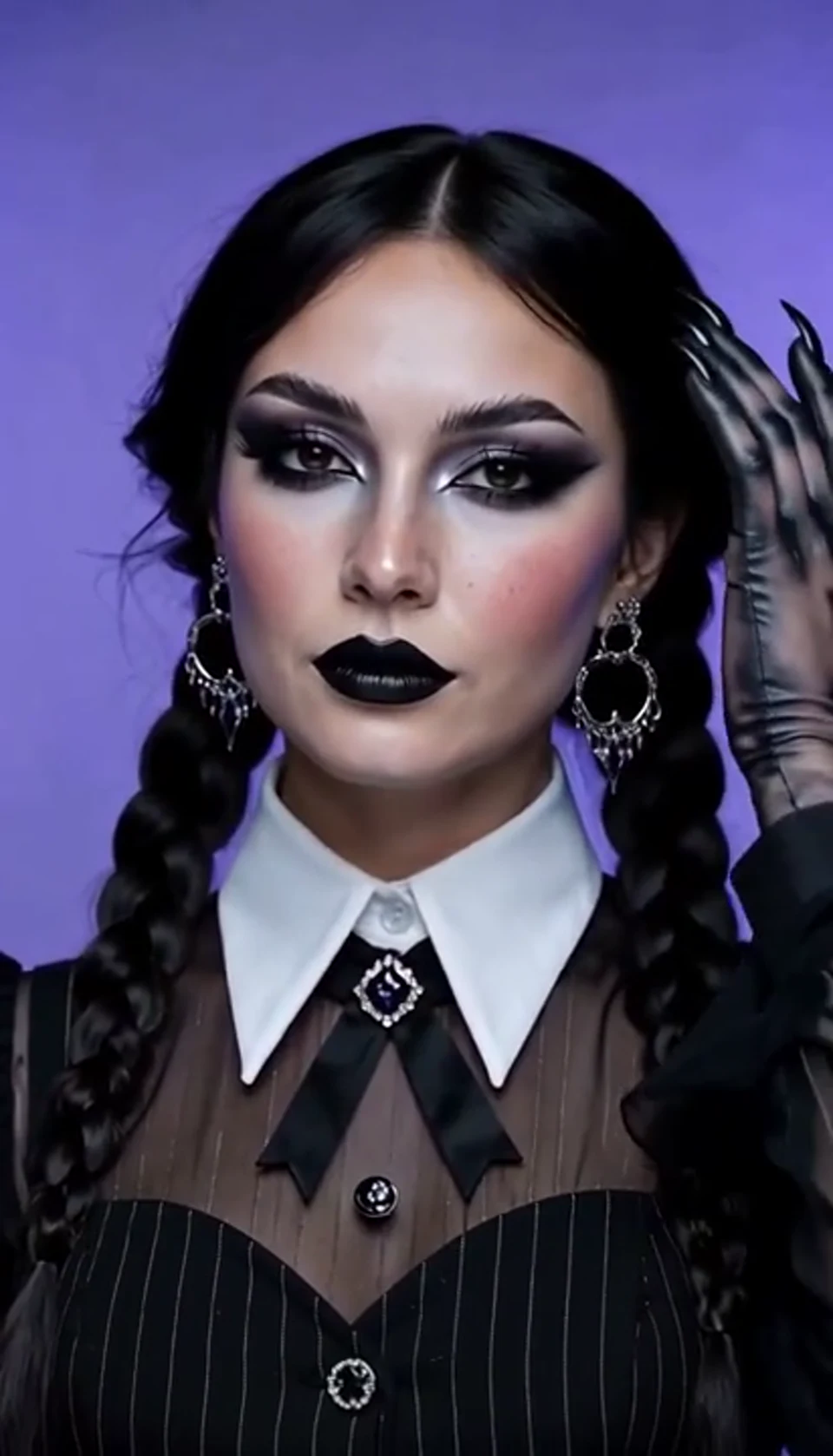
A theatrical hand swipe reveals a gothic costume.
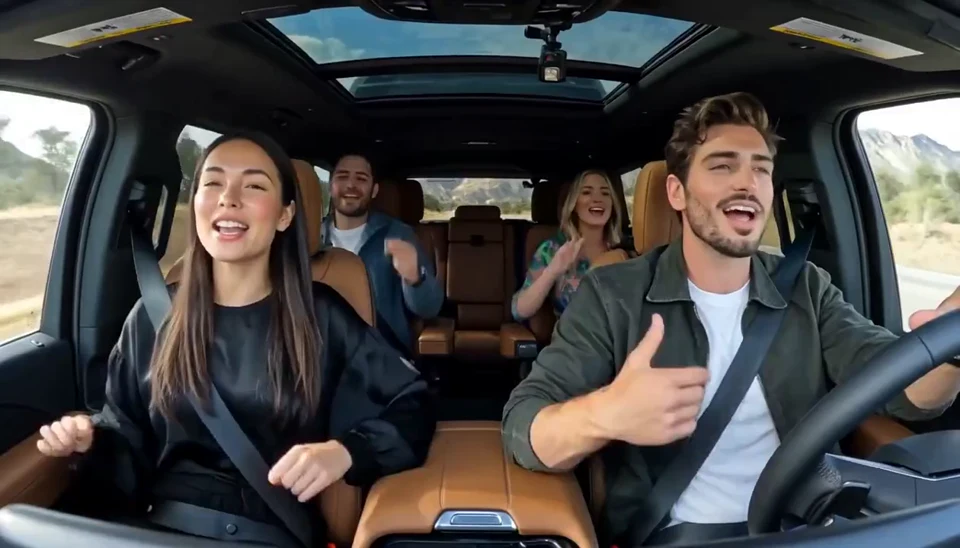
Two photos become one lively dashboard singalong.
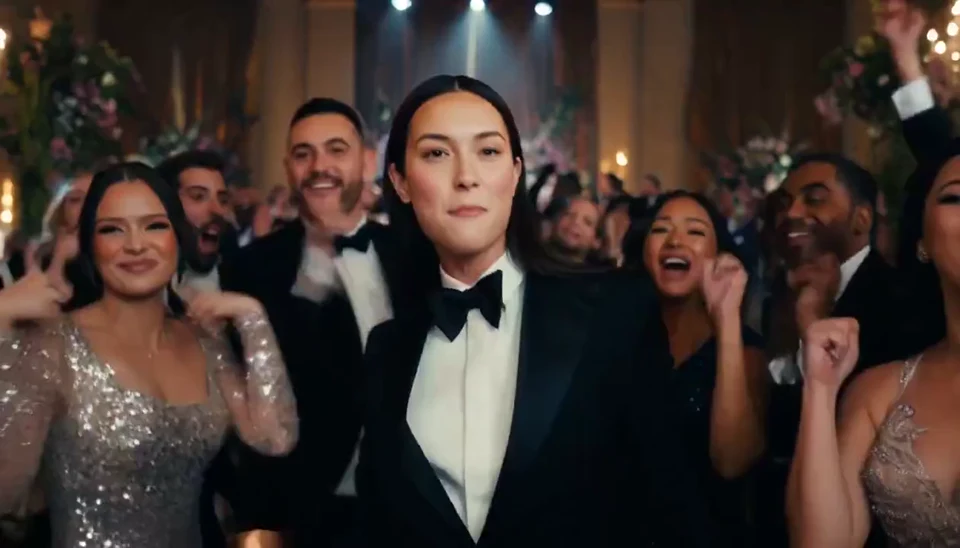
A portrait joins a lively ballroom party.
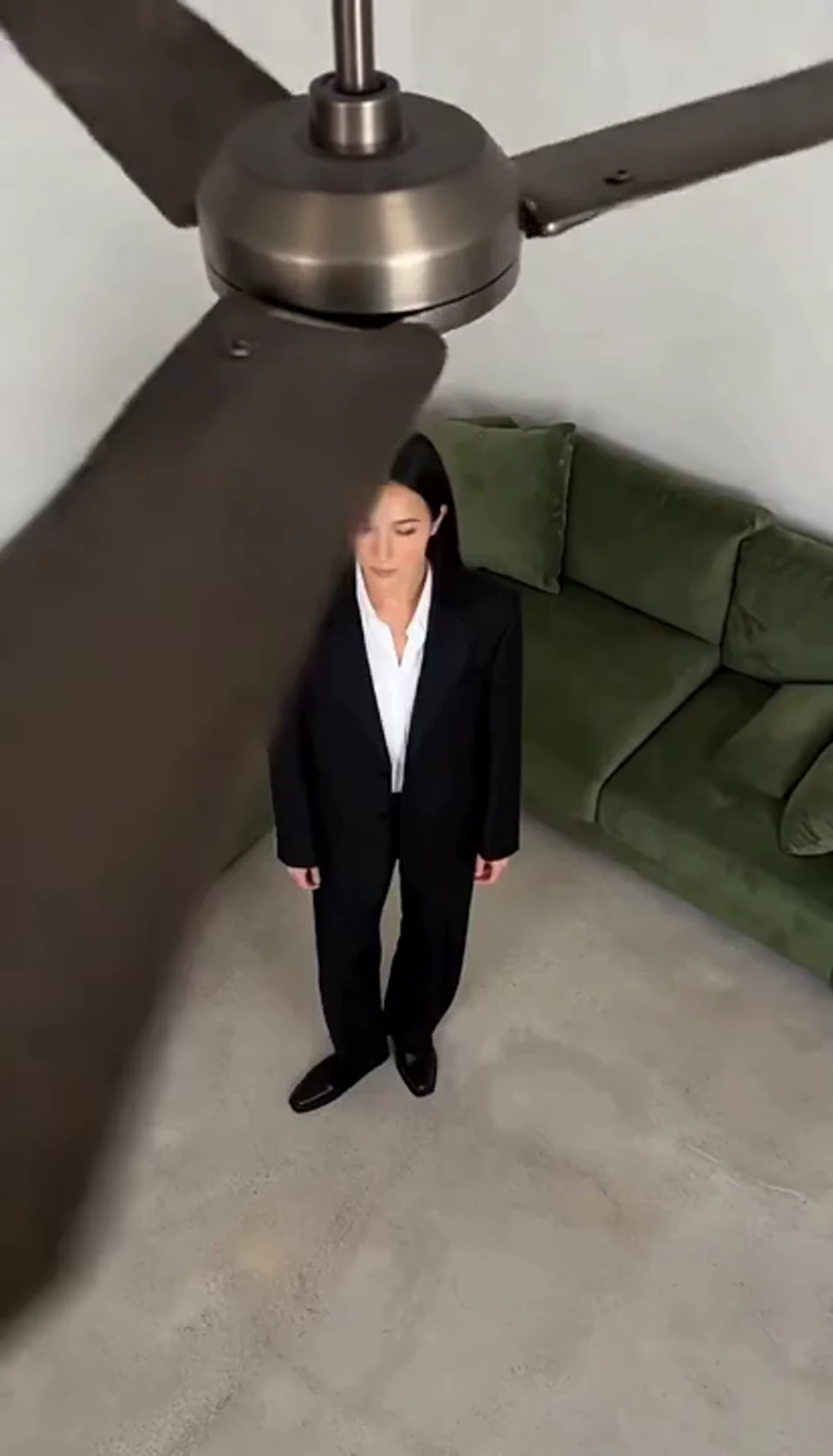
One fan-blade wipe reveals your next outfit.
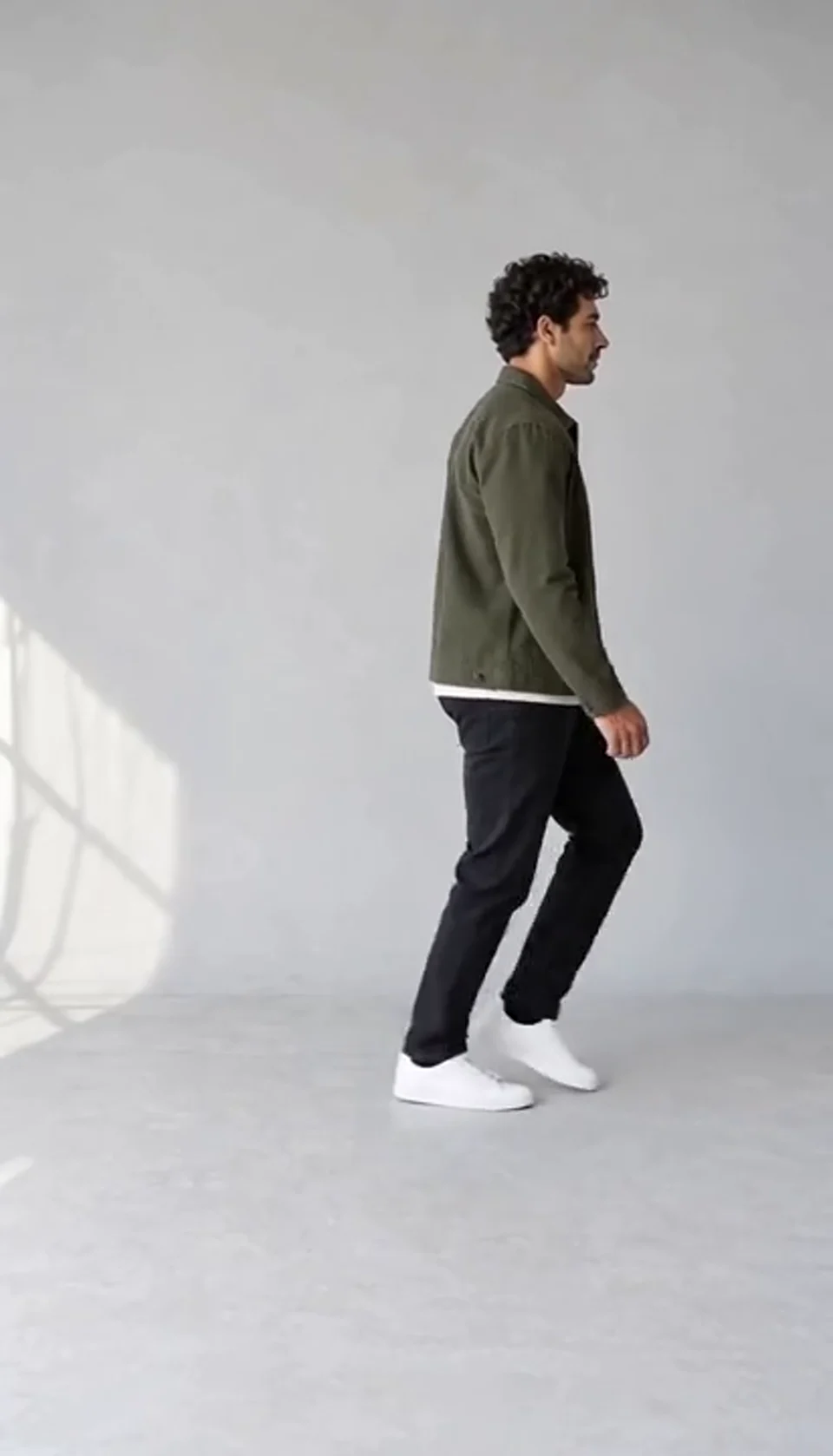
Turn one full-body photo into a short moonwalk dance. A steady side view keeps the sliding steps and your recognizable outfit in focus.
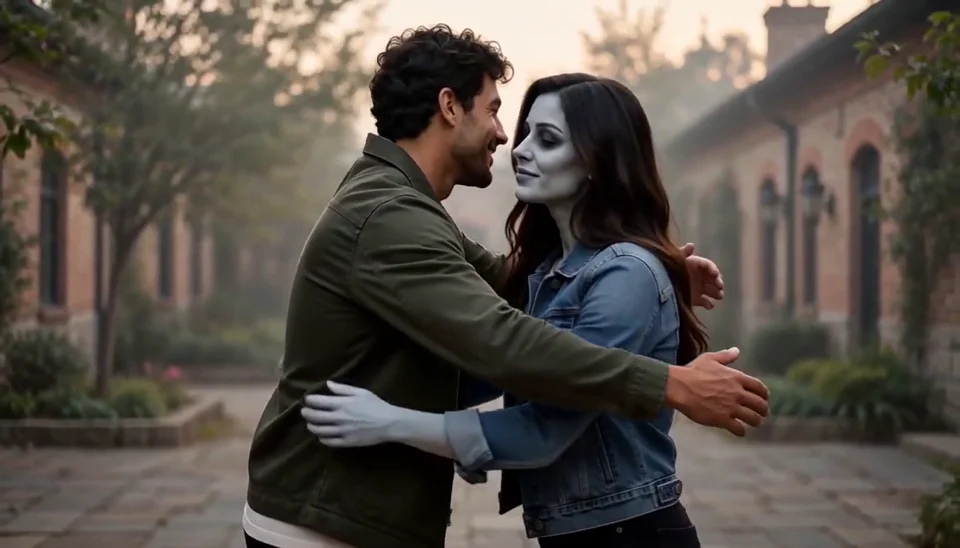
Bring two portraits into a tender fictional reunion: a human survivor recognizes their zombie partner, embraces them and remembers a warmer moment together.
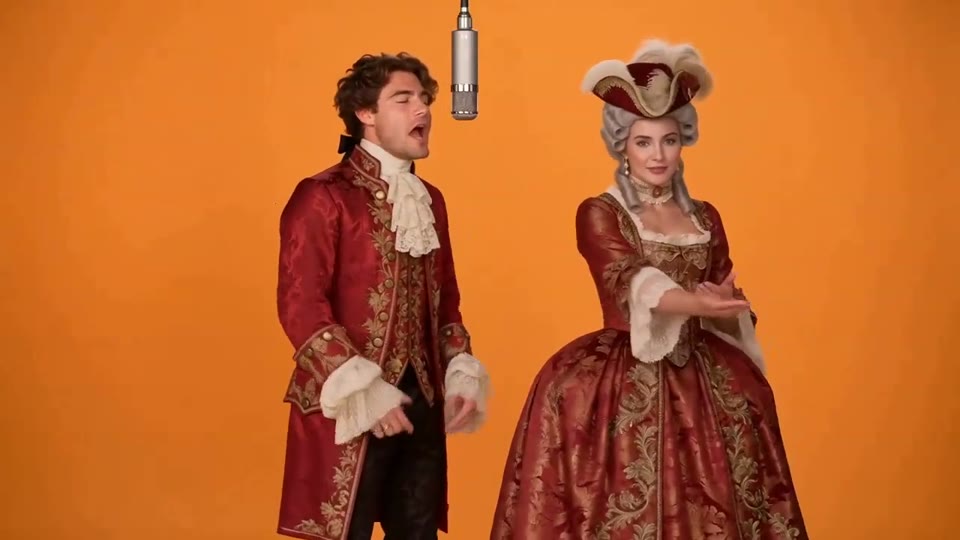
Two photos become a baroque rap duet on an orange stage.
You and a friend trade verses in bold streetwear.
Your character leads a surreal pink-crowd dance.
A portrait comes alive with a playful face-and-hands dance.
Create a Minecraft-style AI video from one photo. Make voxel characters, block-world parkour and adventure clips with original sound on Cut AI.
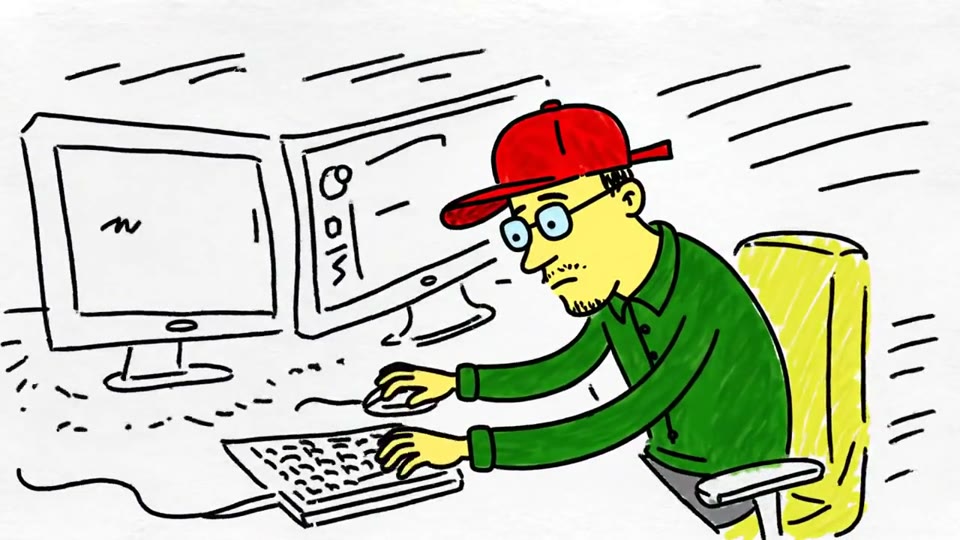
Turn a sketch, drawing or line-art image into an animated video with Cut AI. Preserve the composition and art style with gentle motion and original sound.
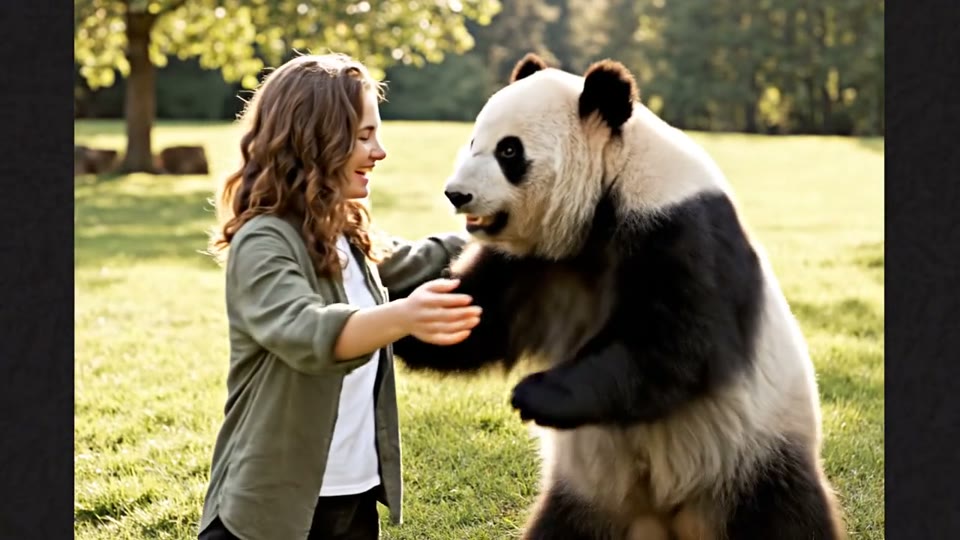
Create a heartwarming AI panda hug video from one photo on Cut AI. Add a gentle panda embrace, bamboo scenery and original sound in your chosen format.
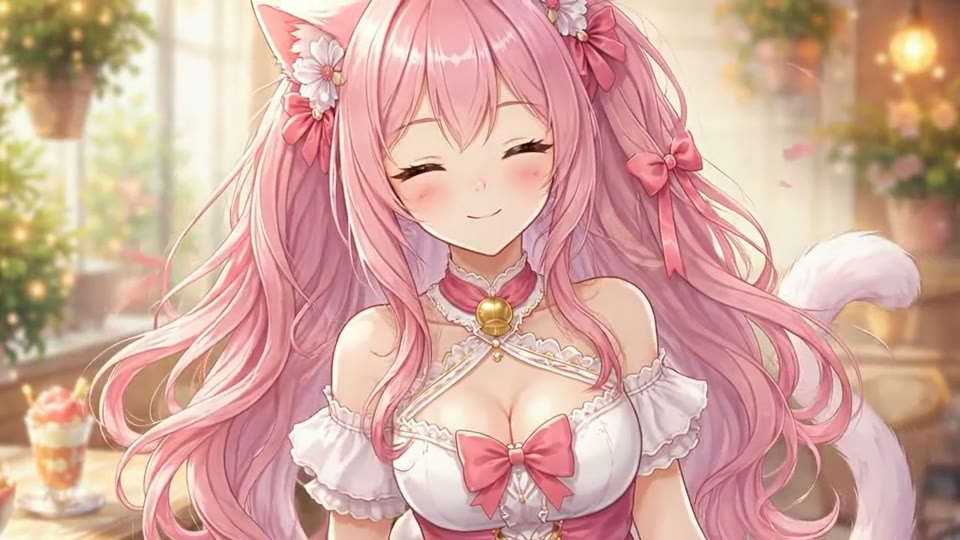
Create Live 2D-style animation from a portrait or character image with Cut AI. Add blinking, breathing and gentle head motion while preserving the visual style.
Learn about source images, output settings, credits and sharing.
It is a generated video that places your portrait subject in an imagined red carpet scene with gala styling, camera flashes and directed motion. It does not document a real event.
Use a sharp photo with a clearly visible face and permission from the person pictured. Heavy filters, sunglasses and cropped faces make it harder to maintain a recognizable subject.
The direction asks for recognizable facial features, but AI results vary. Review the generated face, hands and clothing before sharing, and try a clearer portrait if details drift.
No. This is a preset template with scene, motion, camera and sound direction already included. Upload the required image and choose the settings available in the workbench.
Each video generation costs 200 credits. Check the quote next to Generate before starting. Browsing templates and watching samples is free; each new generation uses another 200 credits.
Choose the supported duration for your template and check the quote before generating. Each generation costs 200 credits. The preset supplies the scene, movement and original sound.
Timing varies with current demand and your chosen duration. Follow progress in the workbench, and find finished videos in My Creations. A generation failure is handled by the existing credit refund flow.
Yes. Download the completed MP4 for a post or edit. Use images you own or have permission to use, obtain consent for personal photos and label fictional transformations as AI creations when sharing.
Choose a clear image, preview the effect and make a short video with original sound. The workbench shows the exact credit cost before you generate.
Create AI Red Carpet Video